Update wizard
This section is for updating vehicle modules with VBF files, which are automatically selected for modules according to the database given by Ford for updating modules.
Warning
Attention! As the practice of using the update wizard shows, do not all modules are successfully updating the software. This may be due to differences in the hardware of the module. In this case, even after a successful module updates may not work correctly, and in some cases even don’t make money at all. Ford’s databases don’t carry any information, what exactly is changed in the next versions of software for modules. Often can only be made WORSE by updating the module. It is recommended to update modules, having previously searched for information either on the Internet, as well as in our forum or in our channel Telegram. Mindlessly updating modules in ALL ONE BY ONE, may lead to unexpected results.
Select vehicle
The screen presents their own list of vehicles that are supportedby the program in the ‘Update Wizard’ mode. Just select a car and press the ‘Next’ button.

Select vehicle
Main screen
The main screen of the ‘Update Wizard’ offers the basic tools to start work.
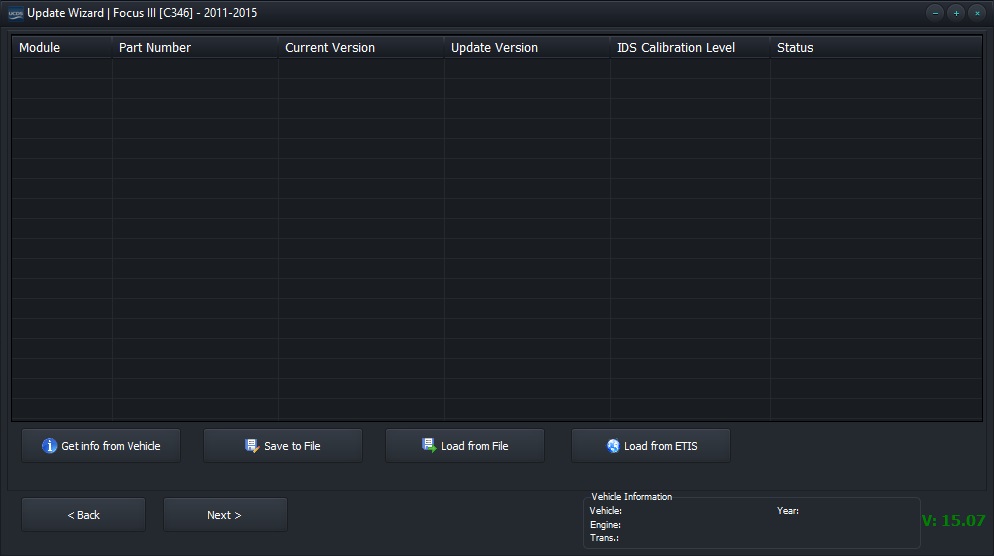
Update Wizard Main Screen
Опросить автомобиль
Save the data of an already polled vehicle to a file
Load survey data from a previously saved file
Upload vehicle data using an online request to the Ford ETIS database
Go to the update section of the selected module
Download from ETIS
This window allows you to get a list for updating modules from the official Ford ETIS server (provided that the data for a specific The vehicle is available on the server). If the data on the server is not it turns out that an error message will be received, or that the data with the servers do not contain any information about the modules of the selected vehicle.
Note
Unfortunately the UCDS development team has no information why some cars receive information on modules, and some don’t. We we believe that the older the car, the higher the probability that the datareceived WILL NOT from servers.
Warning
This feature requires an active Internet connection.
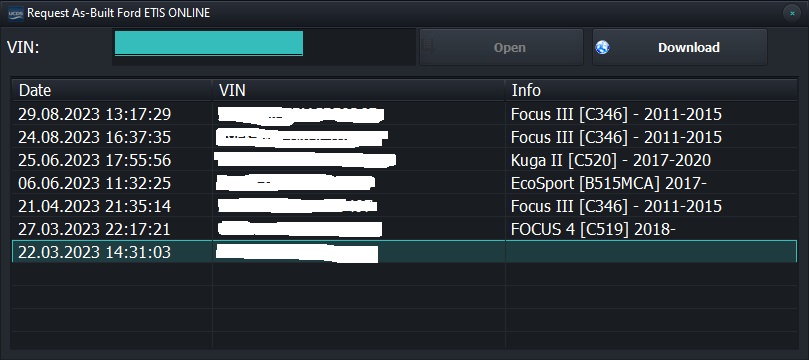
Download screen from ETIS
It is worth noting that the table in this screen displays previous queries to the servers for a specific car. If you work with the same vehicle and data for this vehicle was previously requested and received, You can not make a second request to the server, but select your car from the list and press the ‘Open’ button.
Select module to update
After successful interrogation of the vehicle, downloading the list of modules from ETIS or frompreviously saved file, you will see a list of vehicle modules.
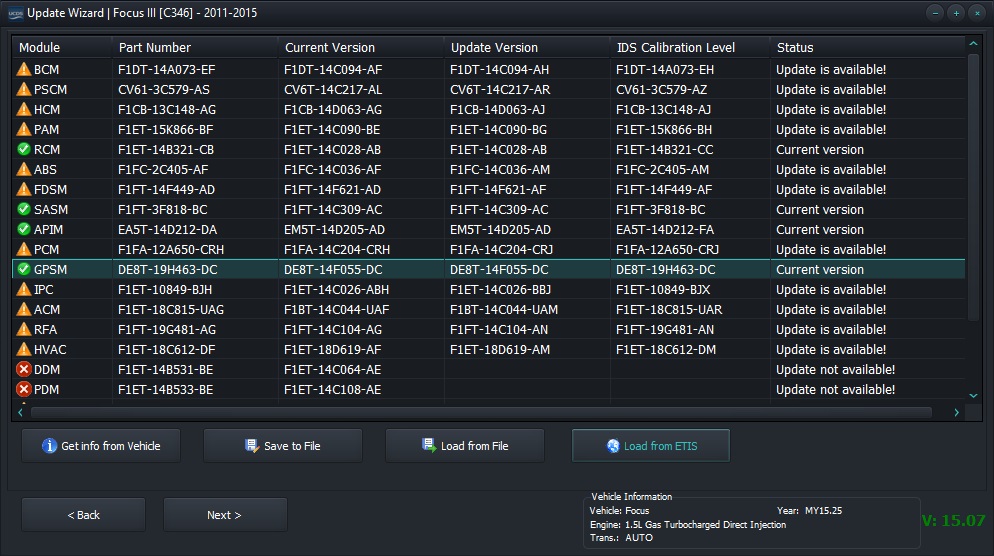
Screen view after receiving information on modules
This table provides detailed information about which modules were interrogated, their data, as well as information about whether there is a the module is updated or not. In this case, next to the name of the module is displayed an icon that can take three forms:
red cross - means that this module is not in databases data on the selected vehicle
orange exclamation mark - for this module according to the databases have an update
green checkmark - this module has the latest version Software and there are no updates for it
Select version to update
The program always selects the latest vehicle for the polled vehiclesoftware version for each module. However, it is possible to self-select the version to which you want to program selected module. This can be done by double-clicking on the cell in the column ‘IDS Calibration Level’. After double-clicking, dropdown menu where you can select any other version for of the selected module.

Choosing a different software version to update
Preparing for module programming
After selecting a module, you will see the following window. It shows which files will be used for programming and in which sequences.
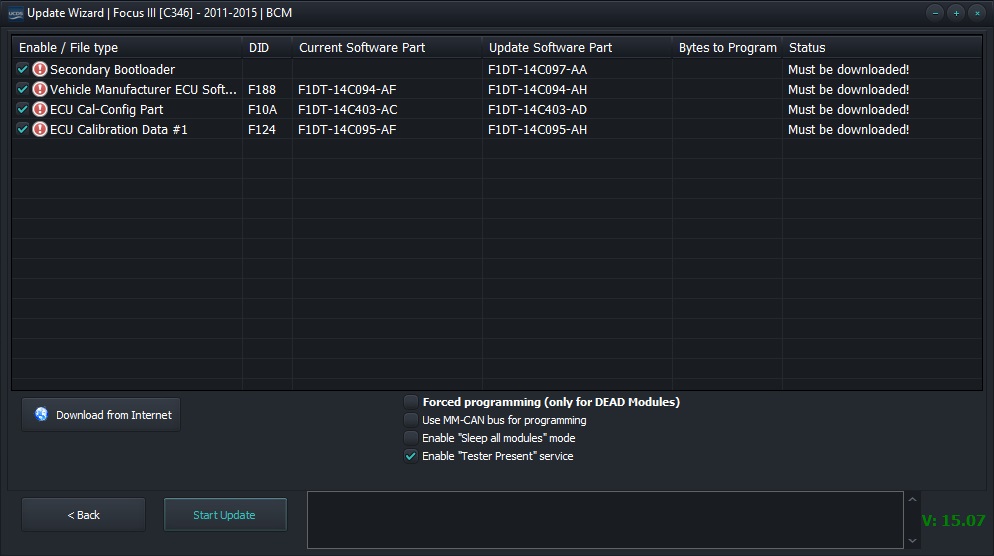
Choosing a different software version to update
Download required files
Icons next to filenames show the following:
Red exclamation mark - file not found in folder ….UCDS_V3\Downloads
Green checkmark - the file is present on the PC and ready to be loaded into module
In order to successfully start programming, ALL the selected files must be downloaded to the PC, or is already in the folder … UCDS_V3\Downloads, which will be marked with a green checkmark. If not all files are are present on the PC, you must press the button ‘Download from the Internet’ and wait for the file download to complete successfully.
Note
Unfortunately, not all files can be downloaded from the server. The developers do not can explain how Ford is guiding accessibilityor some files are missing. We can try to help search required file in critical situations, such as when you need ‘upgrade’ a module or rollback after a failed update, and The required file does not exist on the server. To do this, go to developers at this link, by filling out the form at the bottom of the page with the subject ‘Support’. We let’s try to help.
Warning
You need to be connected to the Internet to download files!
Select files to upload
User has the option to enable\deactivate the downloadcertain files in the list. This can be done by unchecking\installing ticks next to the file name.
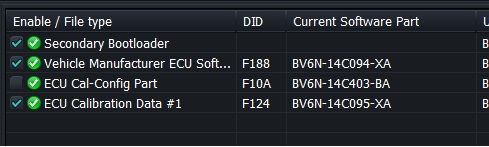
Select\cancel files for programming
Note
Please note that uncheck the first file in the listnamed ‘Secondary bootloader’ and cannot be unbooted. This file is necessary for programming the module as a whole.
Additional options
There are 4 options when programming modules in the update wizard. Two of which are enabled by default and are not recommended to be disabled.

Available options
Forced Programming is similar to the mode in ‘VBF Loader’.Serves for attempts to lift a module that is in the ‘BRICKED” state or close to it
Use MM-CAN bus - ignore default data bus forprogramming the module and forcing the use of the bus on the OBD pinsslots 1 and 8.
Enable Sleep All Modules - allows you to enter modules on the corresponding data bus to “sleep” mode, which allows you to increase module programming speed. Necessary for many cars, equipped with a GWM(Gateway module) instead of the classic OBD connector.
Enable ‘Tester present’ service - allows you to activate the function holding a module in a programming session for a long time. Often required for modules with enough firmware to updategreat.
Module programming
Warning
Warning! We strongly recommend using an external sourcepower supply to recharge the battery during the entire programming processblocks of the car. In case the battery of the car is in sufficient discharged state (or the battery itself is already old and does not hold a charge well), when large data programming, the car can during programming REMOVE power from some part of the modules, to save of the battery charge, which will interrupt the programming process. In in some cases, this situation can lead to BRICKING block. Be careful!
So, you are all set to start programming. Necessary options enabled, all necessary files are available or downloaded from the server. Click button ‘Start update’ If the module is successfully entered into the programming, you will see how the files begin to load. Loading each file is accompanied by a percentage bar for filling the column ‘Status’

Data loading process
In this case, the status information will be displayed in the lower windowprogramming.

Data loading process
Wait for the download to finish, which will be displayed on the screen of your PC.

Module update completed successfully
Congratulations! The module has been successfully updated. Press the ‘Back’ button to select another module, or close the window and return to the main menu of the software UCDS.