Main window of the program
The main window of the program allows you to navigate through the application in depending on the needs of the user. Some of the sections such as like , and are available ONLY if you have an active EXT license for adapter. The absence of this license will not allow the program to get into relevant sections. When you try to “click” on the windows, nothing will happen.
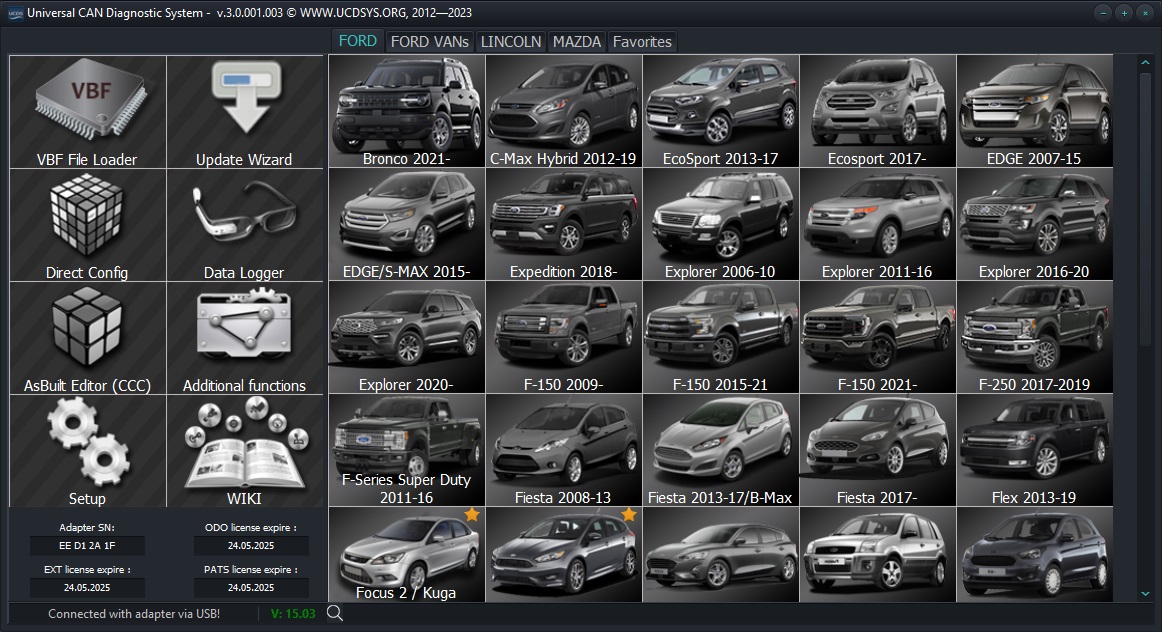
Main program window
Main elements
Adapter and License Information
This section provides information about the serial number of the adapter and active licenses. For licenses, the date until which this the license is active. For licenses that have never been activated, the message ‘Not activated’ will be displayed. If the license ended, the message ‘Expired’ will be displayed.
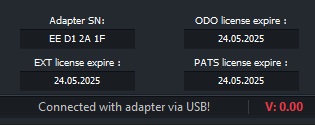
Adapter Information
Information about connection type and voltage
In the lower left corner of the main screen, information about the method of connection and also the current voltage on the 16th pin of the OBD connector. Moreover, for USB mode displays the corresponding icon, and for WIFI mode signal strength indicator. Also voltage information is displayed in EACH section of the program.
Types of connections:
Connected via USB
Connected via WIFI (only for V5 adapters)
Voltage display:
above 12V - text color green
from 10 to 12V - text color yellow
below 10V - text color red
NC - no connection with adapter
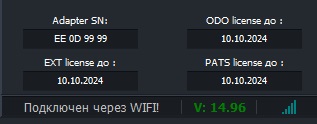
WIFI connection mode with signal strength
Section “Favorites”
This section displays vehicles that have been selected from the main list of cars, for quick access to them. To add or deleting a car in\from the “Favorites” section is enough click on the corresponding vehicle icon with the right mouse button and in in the context window that appears, select the appropriate action. “Favorites” vehicles have a “ icon in the corner of their icon “asterisk”. In the settings section, you can choose to display selected cars at the start of the program by default.
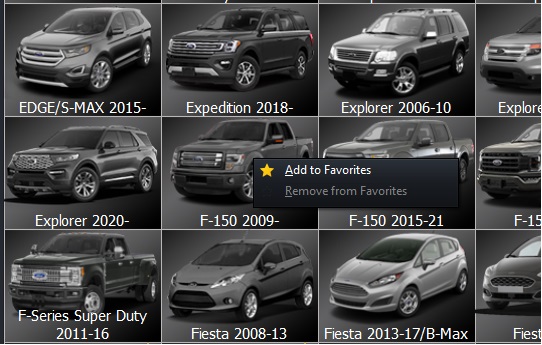
Add to Favorites |

Vehicle added to “Favorites” |
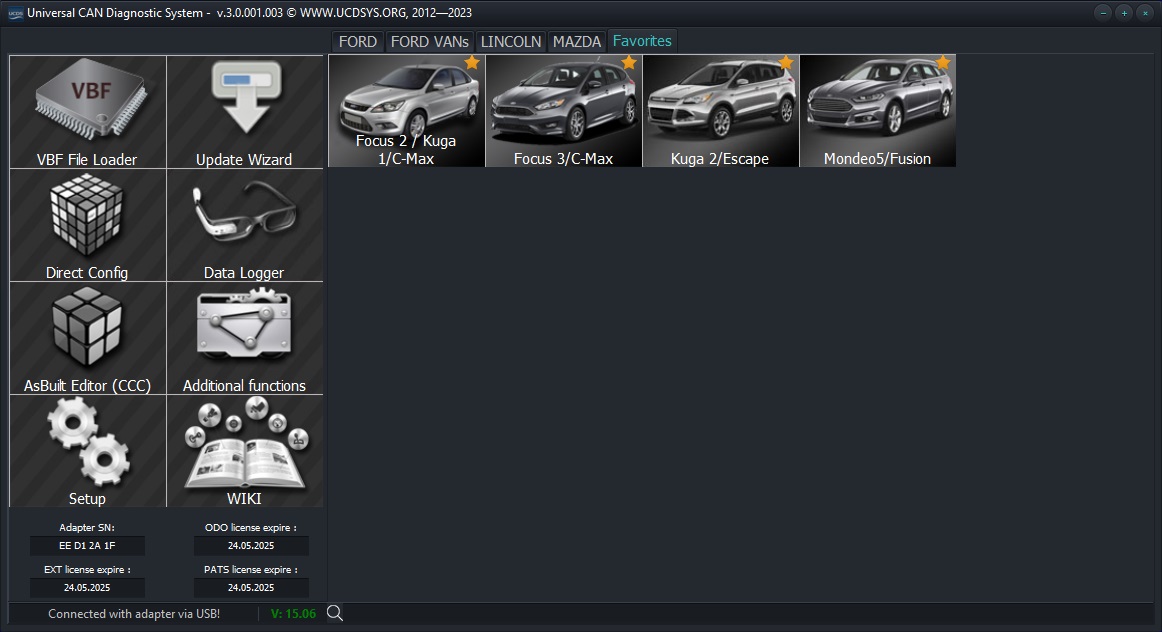
Section with “Favorite”cars